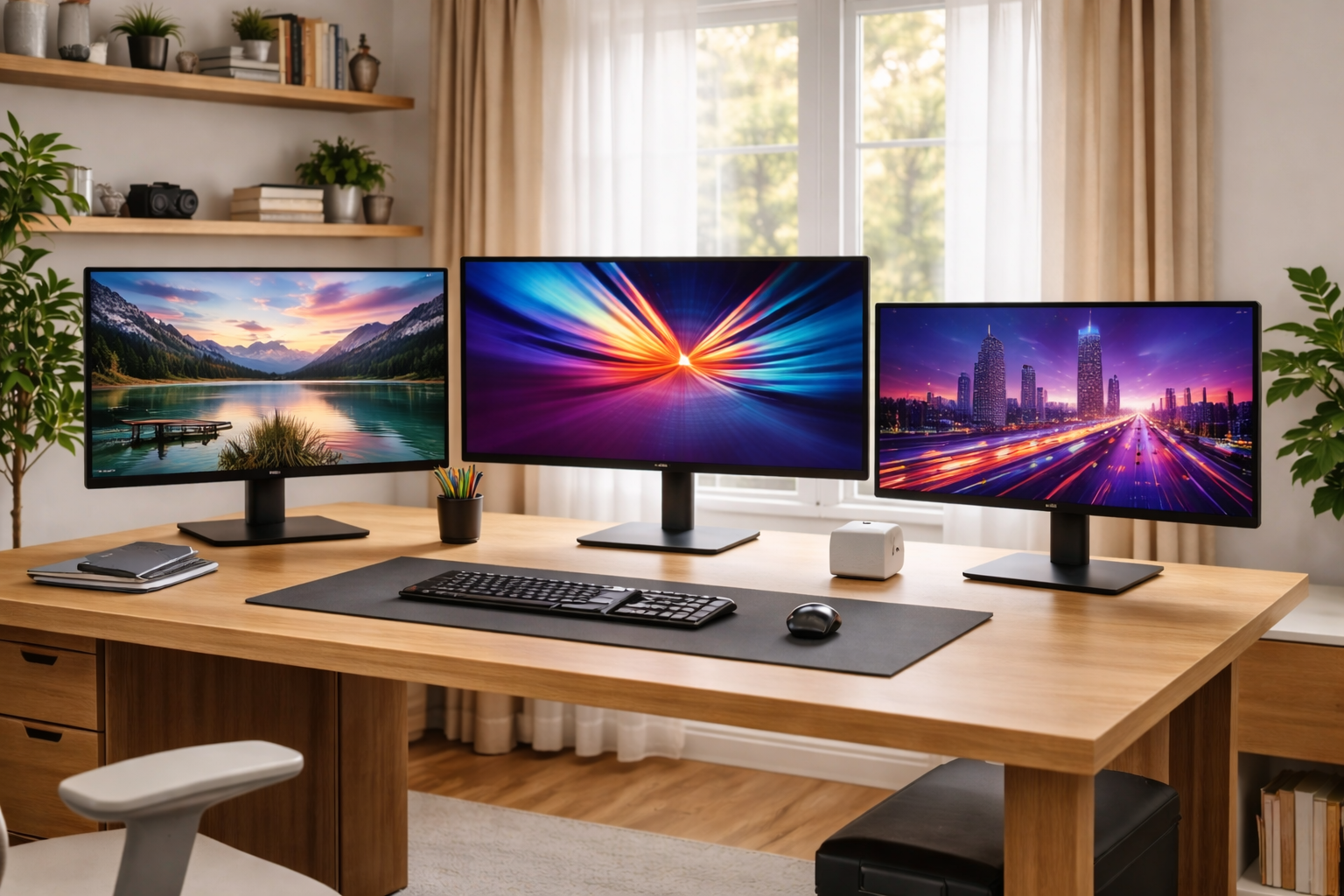



Best Monitors for Home Office in 2026 – an in-depth, no-shortcuts guide to the best 1080p, 1440p, 4K, ultrawide, OLED, and budget monitors for work-from-home setups, with ergonomic tips, buying frameworks, and long-term value advice.
Why Your Monitor Matters More Than Ever in 2026
By 2026, the home office monitor is no longer just “a screen.” For millions of people, it’s the primary interface between their work, their income, and their health.
You might:
- Spend 6–10 hours per day staring at it
- Read thousands of lines of text
- Join multiple video calls
- Edit documents, code, spreadsheets, or designs
A poor monitor leads to:
- Eye strain and headaches
- Neck and shoulder pain
- Reduced focus and productivity
A great monitor does the opposite: it fades into the background and lets you work longer without fatigue. That’s why choosing among the Best Monitors for Home Office in 2026 is one of the highest-ROI upgrades you can make.
- Top Home Office Upgrades in 2026
- Best Desk & Chair Combos for Home Office 2026
- Best Keyboards & Mice for Productivity 2026
- Cable Management Ideas for Your Desk 2026
- Best Laptops for Remote Workers 2026
- Productive Work From Home Setup
- Best Budget Laptops for Remote Work
Best Monitors for Home Office in 2026: How Monitor Technology Has Evolved (2024–2026)
Home office monitors in 2026 are dramatically better than even five years ago. Key improvements include:
1) Better panels at lower prices
- IPS panels are now standard even in budget models
- Color accuracy and brightness have improved across the board
2) USB-C and Thunderbolt are mainstream
Modern monitors increasingly act as docking stations:
- One cable for video, power, data, and peripherals
- Cleaner desks and faster laptop docking
3) Ultrawide and high-resolution adoption
- 1440p is now the “new baseline” for productivity
- 4K and ultrawide monitors are common in professional setups
4) OLED and Mini-LED enter the office
Once gaming-only tech, OLED and Mini-LED now appear in office-friendly monitors with:
- Higher text clarity
- Better brightness control
- Reduced burn-in risk
The Home Office Monitor Buying Framework
Before diving into recommendations, let’s lock in a framework. This prevents overbuying—or worse, buying the wrong monitor.
- Dell Monitors for Home Office
- LG UltraWide & IPS Monitors
- Samsung Productivity Monitors
- BenQ Eye-Care & Office Monitors
- RTINGS Monitor Reviews
1) Screen Size & Resolution: The Foundation
This is the most important decision.
Common productive pairings
- 24” – 1080p: budget setups, secondary screens
- 27” – 1440p: the productivity sweet spot
- 32” – 4K: maximum clarity, large desks
- 34”–40” ultrawide: multitasking without bezels
Rule of thumb:
Text clarity matters more than raw size.
A 27” 1440p monitor often feels sharper and less fatiguing than a cheap 32” 1080p screen.
2) Refresh Rate: Not Just for Gamers
For office work:
- 60Hz = acceptable
- 75–100Hz = noticeably smoother
- 120Hz+ = luxury smoothness
Higher refresh rates reduce:
- Cursor jitter
- Scrolling fatigue
- Perceived eye strain
Many of the Best Monitors for Home Office in 2026 now offer 75–100Hz without a big price jump—and it’s worth it.
3) Ergonomics & Adjustability
Your monitor should adapt to you, not the other way around.
Look for:
- Height adjustment
- Tilt and swivel
- VESA mount support
This matters just as much as resolution for long-term comfort.
4) Connectivity & One-Cable Workflows
Modern home offices benefit massively from:
- USB-C with 65–96W power delivery
- Built-in USB hubs
- Ethernet (on premium models)
This lets your monitor double as a dock, especially useful for laptops.
Best Budget Monitors for Home Office (Under $300)
Budget doesn’t mean bad in 2026—it means focused.
Best Budget 1080p Work Monitor
Best for: email, documents, light multitasking
Key features to expect:
- 24” IPS panel
- 75Hz refresh rate
- Basic height adjustment (or VESA mount)
These monitors are ideal as:
- Starter screens
- Secondary displays
- Compact desks
Best Budget 1440p Monitor
Best for: spreadsheets, coding, writing
A 27” 1440p IPS monitor under $300 is now common and offers:
- Much sharper text
- More workspace
- Better long-term comfort
This is often the best upgrade-per-dollar for home offices.
Best Mid-Range Monitors (The Sweet Spot)
This is where most people should shop.
27” 1440p IPS – The Gold Standard
If you work from home full-time, this category is hard to beat.
Why it works:
- Ideal pixel density
- Enough space for two apps side-by-side
- Comfortable viewing distance
Many mid-range models now include:
- 75–100Hz refresh rates
- USB-C charging
- Better stands and thinner bezels
32” 4K for Text Lovers
If you read and write all day:
- 32” 4K offers exceptional text clarity
- You can scale UI without losing sharpness
This is excellent for:
- Writers
- Legal professionals
- Analysts
Just make sure your desk is deep enough (28”+).
Best Premium & Professional Monitors
Premium monitors aren’t about flexing—they’re about longevity and comfort.
Professional IPS Displays
Companies like Dell, LG, and Eizo offer monitors designed for:
- Long daily usage
- Excellent factory calibration
- Consistent brightness and color
These are ideal if:
- You work 8+ hours daily
- You plan to keep the monitor 5–10 years
OLED & Mini-LED for Office Use
OLED is no longer just for entertainment.
Pros:
- Perfect contrast
- Excellent clarity
- Reduced eye fatigue for some users
Cons:
- Expensive
- Not necessary for basic work
Best for:
- Designers
- Video editors
- Hybrid work + media setups
Best Ultrawide Monitors for Home Office
Ultrawide monitors replace dual screens with a single canvas.
34” Ultrawide (3440×1440)
The most popular ultrawide format.
Benefits:
- Two apps side-by-side without bezels
- Cleaner desk
- Excellent for spreadsheets and timelines
40” Ultrawide (5K2K)
Premium productivity monsters.
Perfect for:
- Financial modeling
- Software development
- Creative workflows
You get the space of two 27” 1440p monitors in one screen.
Best Dual-Monitor Pairings
Some people still prefer two screens—and that’s valid.
Best balanced dual setup
- Two identical 27” 1440p monitors
- Thin bezels
- Monitor arms for alignment
This setup:
- Maximizes flexibility
- Allows vertical orientation for reading
- Costs less than premium ultrawides
Best Monitors by Work Type
For coders & developers
- 27” 1440p or ultrawide
- High text clarity
- Matte finish
For finance & spreadsheets
- 32” 4K or 40” ultrawide
- Vertical space matters
For writers & editors
- 27” 1440p or 32” 4K
- Focus on brightness uniformity
For designers
- Wide color gamut
- Factory calibration
- IPS or OLED panels
For meetings & presentations
- Built-in USB-C
- Clean aesthetics
- Webcam compatibility
Eye Comfort & Health Considerations
Your eyes are not upgradeable—your monitor is.
Look for:
- Flicker-free backlighting
- Low blue light modes
- Matte anti-glare coating
High-resolution screens reduce:
- Squinting
- Refocusing fatigue
- Headaches
Setup & Calibration Tips (10 Minutes That Matter)
- Top of screen at or slightly below eye level
- 20–30 inches viewing distance
- Brightness matched to room lighting
- Use OS scaling instead of leaning forward
These changes matter as much as the monitor itself.
Best Monitors for Home Office in 2026 FAQs
1) What’s the best overall monitor size for home office work?
For most people, 27” at 1440p offers the best balance of clarity, size, and cost.
2) Is 4K worth it for office work?
Yes if you:
- Read text all day
- Have a large desk
- Use scaling correctly
Otherwise, 1440p is often enough.
3) Ultrawide or dual monitors—which is better?
- Ultrawide = cleaner, simpler
- Dual monitors = more flexible
Choose based on workflow, not hype.
4) Do I need 120Hz+ for work?
Not required—but once you use 75–100Hz, going back to 60Hz feels rough.
5) Are OLED monitors safe for office use now?
Yes, for most users. Burn-in risk is much lower than earlier generations, but they’re still overkill for basic tasks.
6) What’s the biggest mistake people make?
Buying a large, low-resolution monitor that causes eye strain instead of improving productivity.
Best Monitors for Home Office in 2026 Final Thoughts
The Best Monitors for Home Office in 2026 are not about chasing specs—they’re about supporting your workday without friction.
If you want the safest recommendation:
- Buy a 27” 1440p IPS monitor with good ergonomics
- Add a monitor arm
- Pair it with proper lighting
That single decision can improve comfort, focus, and productivity for years.
A great monitor doesn’t demand attention—it quietly makes every workday better.
All Rights Reserved © 2026