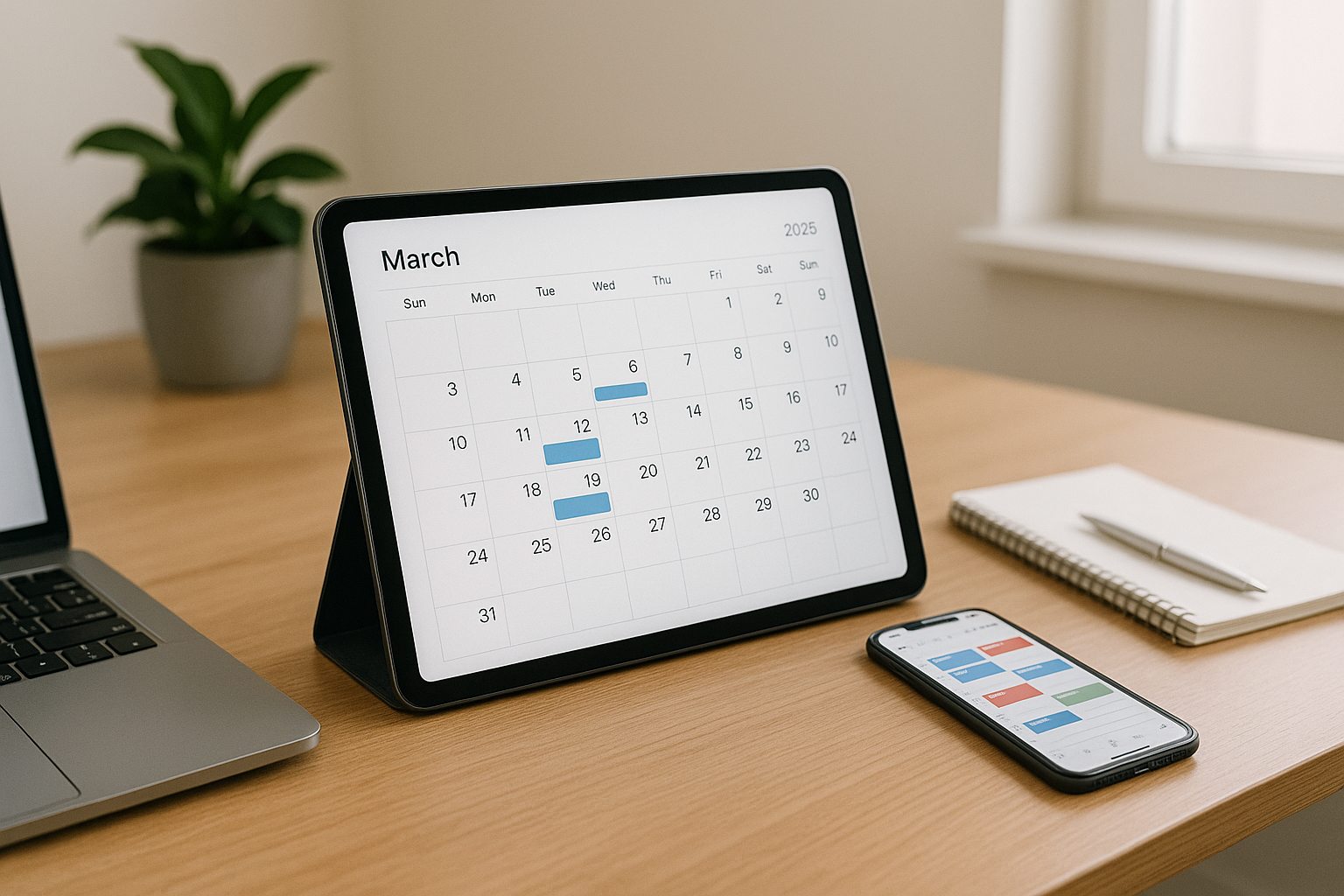



Discover the Top Calendar & Planning Apps in 2026 with the best free and paid options. See AI schedulers, time-blocking methods, starter stacks, pricing, and privacy tips to plan weeks like a pro.
Calendars aren’t just for meetings anymore. In 2026, your calendar is the command center for work, school, family, fitness, and focus. The best tools now blend time-blocking, tasks, and AI scheduling so your priorities get real space on the grid. This guide breaks down the Top Calendar & Planning Apps in 2026, who each one is for, and how to build a light, reliable setup that you’ll actually use.
Why Calendars Matter More Than Ever in 2026
Hybrid work, AI scheduling, cross-time-zone life
We juggle in-office days, remote weeks, and teammates across continents. AI now suggests meeting slots, defends deep-work windows, and reshuffles tasks when surprises hit. A strong calendar turns chaos into a plan you can see.
The “light stack” rule: fewer tools, clearer weeks
Pick one calendar, one task app, and optional AI scheduler. Connect them well and stop adding more. The aim is a single source of truth so you know what to do and when to do it.
How We Evaluated the Top Calendar & Planning Apps in 2026
Criteria: speed, cross-platform, time-blocking, tasks, AI, privacy
- Speed & reliability: opens fast, syncs instantly.
- Cross-platform: web, iOS/Android; desktop if possible.
- Time-blocking: easy drag blocks, recurring templates, colors.
- Tasks & integrations: pull tasks onto the grid or auto-schedule.
- AI features: smart scheduling, buffer rules, conflict resolution.
- Privacy/security: MFA, granular sharing, clear exports.
Free vs. paid: when an upgrade actually pays off
Upgrade when a feature saves more time than it costs—common wins are AI scheduling, booking links, and pro natural-language input.
Top Calendar & Planning Apps in 2026 Quick Picks (TL;DR)
- Best all-around (most people): Google Calendar
- Best for Microsoft shops: Outlook Calendar
- Best Apple-first experience: Apple Calendar (upgrade: Fantastical)
- Best AI task auto-scheduling: Motion
- Best habit-aware smart scheduling: Reclaim
- Best keyboard-first power calendar: Cron (by Notion)
- Best booking tool: Calendly (or native Google/Outlook booking pages)
- Best free baseline: Google Calendar or Outlook + your task app of choice
Deep Reviews — The Best Cross-Platform Calendars
Google Calendar — sharing, booking, and time-blocking backbone
Simple, fast, and everywhere. Shared calendars, color-coded time-blocks, and built-in Appointment Schedules make it easy to book with outsiders. Works smoothly with most task apps, meeting tools, and AI schedulers.
Best for: almost everyone, especially mixed-device teams.
Why you’ll like it: dependable sync, great sharing, recurring templates that stick.
Microsoft Outlook Calendar — enterprise muscle with 365
If your org runs on Microsoft 365, Outlook Calendar integrates perfectly with Teams, Exchange, and OneDrive. Intelligent meeting insights, room booking, and enterprise-grade controls make it the default in many companies.
Best for: Windows/Office users and regulated industries.
Why you’ll like it: the least friction if you live in Outlook + Teams.
Apple Calendar (with an eye on Fantastical) — natural language + ecosystem
Apple Calendar is fast, clean, and nails the basics across iPhone, iPad, and Mac. Natural language entry (“Lunch with Alex next Tue 12–1 at Blue Bottle”) is solid. If you want power features (meeting proposals, templates, amazing views), Fantastical is the premium Apple-only upgrade.
Best for: Apple-only users who value speed and design.
Why you’ll like it: instant sync via iCloud; great with Focus Modes and widgets.
Fantastical — premium Apple-first power with natural language
A favorite for time-blockers. Beautiful views, meeting proposals, templates for repeating blocks, and best-in-class natural language. Integrates with Google/Outlook backends and popular task apps.
Best for: Apple users who plan heavily and want polish.
Why you’ll like it: fewer clicks to set complex weeks.
Motion — AI that auto-schedules tasks and defends deep work
Give Motion your tasks with durations/deadlines and it automatically places them on your calendar, re-planning when meetings move. It also protects deep-work windows and can optimize your day for energy and deadlines.
Best for: overloaded calendars where work gets pushed aside.
Why you’ll like it: tasks finally get actual time—not just wish lists.
Reclaim — smart habits, buffers, and meeting coordination
Reclaim turns habits (workouts, reading, writing) into flexible calendar blocks that move intelligently around meetings. It auto-adds buffers, lunch, and focus time, and plays nicely with Google Calendar.
Best for: teams and individuals who value routine + flexibility.
Why you’ll like it: you keep your rhythm even on busy weeks.
Cron (by Notion) — keyboard-driven power scheduling
A sleek, fast pro calendar that makes multi-time-zone planning painless. Quick commands, link sharing, and Notion ecosystem energy.
Best for: power users and product teams.
Why you’ll like it: speed + shortcuts for people who live in calendars.
Calendly & booking tools — no more back-and-forth
Share a link and let others pick from your real availability (respecting buffers and focus blocks). Integrates with Google/Outlook and many CRMs.
Best for: sales, coaching, interviews, contractors.
Why you’ll like it: fewer emails, cleaner days.
Planning Add-Ons That Supercharge Your Calendar
Task apps that sync well
- Todoist / TickTick: fast personal tasks; calendar feeds and 2-way time-blocking.
- Asana / ClickUp: project tasks → calendar for team planning.
Tip: use one task app. Link the source doc in each task so your block starts fast.
Focus helpers that respect your blocks
- Focus/Freedom: block distracting sites during deep-work events.
- Focus timers: 50/10 cycles built into TickTick or standalone apps.
Meeting note templates → decisions
Use a simple template: Agenda → Decisions → Owners → Due dates. Paste link into the calendar event so notes live where time happens.
Time-Blocking Methods That Work in 2026
Day theming + 50/10 deep-work cycles
Give days a purpose: Mon plan, Tue/Thu deliver, Wed collaborate, Fri review/admin. Each morning, two 50-minute focus blocks with 10-minute resets.
Maker–manager split, buffers, and firebreaks
Morning = maker time; afternoon = meetings. End meetings at :50 to add notes and next steps. Hold a midweek firebreak (30–60 minutes) to absorb surprises so the rest of the week survives.
Starter Stacks: Set Up in ~30 Minutes
Students
- Calendar: Google Calendar
- Tasks: Microsoft To Do or Todoist
- Add-ons: Focus timer (Focus To-Do)
- Setup: class calendars, recurring study blocks, 2 weekly review slots; meeting/lecture note template.
Busy Managers
- Calendar: Outlook or Google Calendar
- AI Scheduler: Reclaim (habits/buffers) or Motion (tasks)
- Tasks: Asana/ClickUp for team work; Todoist for personal inbox
- Setup: morning maker blocks, afternoon office hours, weekly decision doc link in events.
Solo Creators
- Calendar: Google Calendar or Fantastical
- AI Scheduler: Motion (for content tasks)
- Tasks: Todoist + sections (Ideas, Drafting, Editing, Publish)
- Setup: research Tue, outlines Wed, drafts Thu, schedule Fri; two deep blocks AM.
Small Remote Team
- Calendar: Google Workspace
- Comms: Slack
- Projects: Asana/ClickUp + decision log page
- Setup: shared team calendar; “office hours” block; weekly 30-min review; meeting notes template linked in every event.
Privacy & Security Essentials for Calendar Power Users
- MFA everywhere (email, calendar, cloud).
- Granular sharing: default to busy/free with event details hidden unless needed.
- Review calendar access quarterly (old contractors/apps).
- Backups/exports: monthly ICS export or rely on org retention.
- Device hygiene: short auto-lock, OS updates on.
Solid baseline guidance: NIST’s user-friendly cybersecurity resources: https://www.nist.gov/cybersecurity - .
Pricing Snapshot & Value Tips (typical 2026)
- Free: Google Calendar, Outlook, Apple Calendar; basic booking pages.
- $4–$8/mo: Fantastical personal; TickTick Premium; Todoist Pro.
- $10–$20/mo: Motion, Reclaim, Calendly Pro; Asana/ClickUp starter tiers.
Value tip: If AI scheduling helps you finish work you’d otherwise bump, it usually pays for itself in the first week.
Comparison Tables
Platforms & AI
| App | Platforms | AI Scheduling | Time-Blocking | Booking/Links | Best For |
|---|---|---|---|---|---|
| Google Calendar | Web/iOS/Android | Via add-ons | Strong | Built-in | Most users |
| Outlook Calendar | Win/macOS/Web/iOS/Android | Via Copilot/Add-ins | Strong | Built-in | Microsoft orgs |
| Apple Calendar | macOS/iOS/iPadOS | — | Good | Via third-party | Apple-only |
| Fantastical | macOS/iOS | Suggestions | Excellent | Proposals | Power Apple |
| Motion | Web/iOS | Yes (tasks) | Excellent | Basic | Busy pros |
| Reclaim | Web | Yes (habits) | Excellent | — | Routines |
| Cron | Win/macOS/iOS | Light | Excellent | Share links | Power users |
| Calendly | Web | N/A | — | Yes | Scheduling |
Price (indicative monthly)
| App | Free Tier | Paid (approx.) |
|---|---|---|
| Google/Outlook/Apple Calendar | Yes | — |
| Fantastical | Limited | $4–$8 |
| Motion | Trial | ~$12–$20+ |
| Reclaim | Limited | ~$8–$12 |
| Calendly | Limited | $8–$15 |
FAQs: Top Calendar & Planning Apps in 2026
1) What’s the single best pick for most people?
Google Calendar for the spine, plus your favorite task app. Add Reclaim or Motion if you need AI scheduling.
2) Do I need an AI scheduler?
Only if tasks keep slipping. If you reliably protect two morning focus blocks, you may not need it.
3) Apple user—Fantastical or Apple Calendar?
Apple Calendar is great and free. Upgrade to Fantastical if you want templates, proposals, and richer natural language.
4) How do I stop meetings from eating my week?
Theme days, set office hours, end at :50, and move status to a decision doc. Book deep work first, then meetings.
5) Best free setup for students?
Google Calendar + Microsoft To Do (or Todoist Free) + a Pomodoro timer. Create recurring study blocks and a Sunday review.
6) Can I mix Google Calendar with Outlook at work?
Yes, but keep one primary. Subscribe to the other as a read-only layer to avoid conflicts.
7) How do I time-block without overplanning?
Block big rocks and meeting clusters only. Leave buffers and a midweek firebreak for surprises.
8) Is sharing safe?
Use busy/free as default, enable MFA, and review permissions quarterly. See NIST basics: https://www.nist.gov/cybersecurity
.
9) What about booking links—are they rude?
They’re fine if you also offer alternatives (“Here’s my link, or share times that work for you.”).
10) How do I make this stick?
Run a 30-minute weekly preview (Fri/Sun), pick 3 outcomes, and place two 50-minute deep-work blocks daily.
Conclusion & Next Steps
The Top Calendar & Planning Apps in 2026 help you see your week and protect what matters. Start with one primary calendar, connect one task app, and—if needed—add an AI scheduler to defend deep work. Keep a simple weekly preview (30 minutes) and a nightly shutdown (10 minutes). In two weeks your days will feel calmer; in two months your results will tell the story.
- Notion — All-in-One Note Workspace
- Microsoft OneNote — Free Note App
- Evernote — Notes & Web Clipping
- GoodNotes — Handwriting Notes (iOS/Android)
- reMarkable — Paper Tablet for Notes
- Obsidian — Local Markdown Knowledge Base
- Apple Notes — Built-in Note System
- SimpleNote — Free Lightweight Note App
- Zoho Notebook — Free Cloud Notes
- Roam Research — Networked Thought Notes
All Rights Reserved © 2026