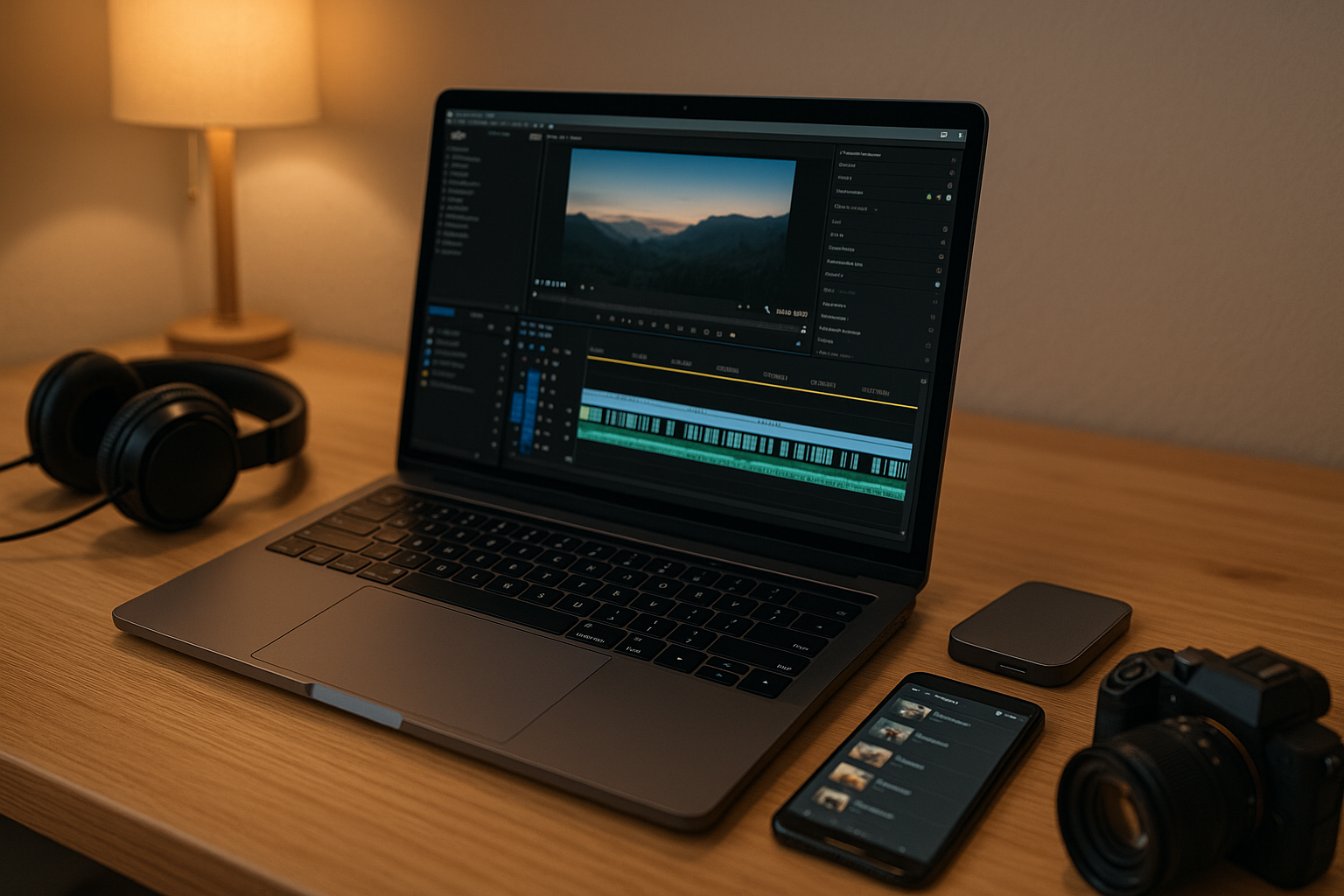



Introduction: why video editing apps for creators 2025 matter
Publishing video regularly is easier—and more crowded—than ever. The right video editing apps for creators 2025 help you draft faster, color better, caption accurately, and export for every platform without wrestling your timeline. Below you’ll find battle-tested picks for desktop, mobile, and web, plus simple ways to choose the best tool for your style and budget.
TL;DR picks (best in class by use case)
- Best all-around (free): DaVinci Resolve (robust color, Fairlight audio).
- Best for Mac pros: Final Cut Pro (buttery performance on Apple silicon).
- Best for Adobe ecosystem: Premiere Pro (tight with Photoshop/After Effects).
- Best mobile pro app (iOS/iPadOS): LumaFusion.
- Best mobile quick edits (iOS/Android): CapCut or VN (speed + templates).
- Best browser editor: Clipchamp (Windows & web) or Canva Video for social.
- Best AI-assisted podcast/voice to text: Descript (edit by transcript).
How to choose the right editor (5-point checklist)
- Platform & performance: Mac/Windows/tablet? Aim for 16GB RAM (minimum) and SSD storage for 4K.
- Learning curve: Do you prefer drag-and-drop templates or full control?
- Audio & captions: Built-in noise removal, loudness tools, auto-captions/subtitles.
- Motion graphics: Titles, transitions, keyframes, After Effects-style control.
- Export targets: YouTube, Instagram, TikTok, vertical/9:16, LUT/color management.
The best video editing apps for creators 2025
Desktop / Mac / Windows
- DaVinci Resolve (Free & Studio) — Elite color-grading (Color page), strong audio with Fairlight, powerful Cut page for fast edits. Free version is generous; Studio adds noise reduction and advanced FX.
- Adobe Premiere Pro (Paid) — Industry standard for teams; integrates with After Effects, Audition, Photoshop, and stock libraries. Deep plugin world; subscription model.
- Final Cut Pro (Paid, macOS) — Blazing performance on Apple silicon, magnetic timeline, fast H.265/ProRes exports; great for solo Mac creators.
- VEGAS Pro / HitFilm / Filmora (Paid) — Creator-friendly timelines with lots of presets; easier learning curves than pro suites.
- Shotcut / Kdenlive (Free, open source) — Capable timelines and formats without cost; a bit more DIY.
Mobile (phones & tablets)
- LumaFusion (iOS/iPadOS) — Multi-track timeline, color tools, external drive support; a legit pro editor on iPad.
- CapCut (iOS/Android/Desktop) — Templates, speed ramping, beat sync, auto-captions; great for Shorts/Reels/TikTok.
- VN (iOS/Android/Desktop) — Clean timeline, keyframes, LUTs, no watermark on most exports.
- KineMaster / InShot — Quick edits, overlays, social-ready formats and stickers.
Browser-based & AI-assisted
- Clipchamp (Web/Windows) — Easy timeline, stock media, brand kits; strong for fast client updates.
- Canva Video (Web) — Rapid social edits, text styles, animations, brand assets.
- Descript (Mac/Win/Web) — Edit by transcript, overdub voice, screen record, podcast polish.
- Kapwing / Motionbox — Team-friendly, template-driven social videos in browser.
| App | OS | Learning curve | Price vibe | Ideal for |
|---|---|---|---|---|
| DaVinci Resolve | Mac/Win/Linux | Medium–High | Free / one-time Studio | Color, audio, long-form |
| Premiere Pro | Mac/Win | High | Subscription | Teams, AE integration |
| Final Cut Pro | Mac | Medium | One-time | Fast solo creators |
| LumaFusion | iOS/iPadOS | Medium | One-time | iPad creators |
| CapCut | iOS/Android/Desktop | Easy | Free + optional | Shorts/Reels/TikTok |
| VN | iOS/Android/Desktop | Easy | Free | Quick mobile edits |
| Clipchamp | Web/Windows | Easy | Free + tiers | Browser edits |
| Descript | Mac/Win/Web | Easy–Medium | Subscription | Podcasts, talk-heads |
Creator workflows you can copy
YouTube long-form (10–20 min)
- Plan: outline → A-roll → B-roll list.
- Edit: Resolve/Premiere/Final Cut Pro; use proxies for 4K.
- Polish: match loudness, add subtle LUT, auto-generate captions, chapter markers.
- Export: 4K, high bitrate; upload with custom thumbnail.
Shorts/Reels/TikTok (0:15–0:60)
- Edit: CapCut or VN; 9:16 timeline; beat sync; big text safe area.
- Captions: auto-captions with brand font; burn-in if platform misreads.
- Export: 1080×1920, 30/60fps; keep files <100MB.
Podcasts / talking heads
- Record: dual-ender for best audio.
- Edit: Descript to remove ums, filler, and generate transcript; send to Resolve/Premiere for b-roll & graphics.
- Publish: YouTube + audio RSS; post clips to Shorts.
Travel vlogs
- Shoot: 24/30fps, ND filter for outdoors.
- Edit: Final Cut Pro or Resolve; stabilize sparingly; use maps/lower thirds.
- Music: licensed tracks; keep stems for ducking.
Performance & quality tips (quick wins)
- Use proxies for 4K/10-bit footage (but export from originals).
- Color first, effects later; finish with mild sharpening only.
- Audio matters: noise reduce lightly, compress/limit to -14 LUFS for web.
- Captions & subtitles: boost retention and accessibility; keep contrast high.
- Presets & templates: save time with reusable titles and export presets.
FAQs (video editing apps for creators 2025)
1) What’s the best free option in 2025?
DaVinci Resolve—feature-rich and production-ready. Pair with CapCut for fast vertical content.
2) I’m new. Which app is easiest to learn?
CapCut, VN, or Clipchamp. Then graduate to LumaFusion (iPad) or Final Cut Pro/Resolve.
3) Do I need a powerful computer for 4K?
It helps. If not, use proxies and an SSD; mobile editors can also handle 4K if you keep effects light.
4) Can I edit only on phone/tablet?
Yes—LumaFusion, CapCut, and VN are great. For complex audio or color, finish on desktop later.
5) How do I add captions quickly?
Use auto-caption tools in CapCut, Descript, or Premiere/Resolve speech-to-text, then proofread.
6) What about licensing for music and fonts?
Use licensed libraries (e.g., YouTube Audio Library, Artlist) and ensure your brand fonts allow video use.
Pick one tool for long-form and one for short-form. For many creators, the winning combo in video editing apps for creators 2025 is DaVinci Resolve (long-form polish) + CapCut or VN (shorts speed). Build a reusable workflow: plan → shoot → rough cut → color/audio → captions → export presets. Keep learning with the official docs and a weekly practice project—you’ll level up fast.
All Rights Reserved © 2026