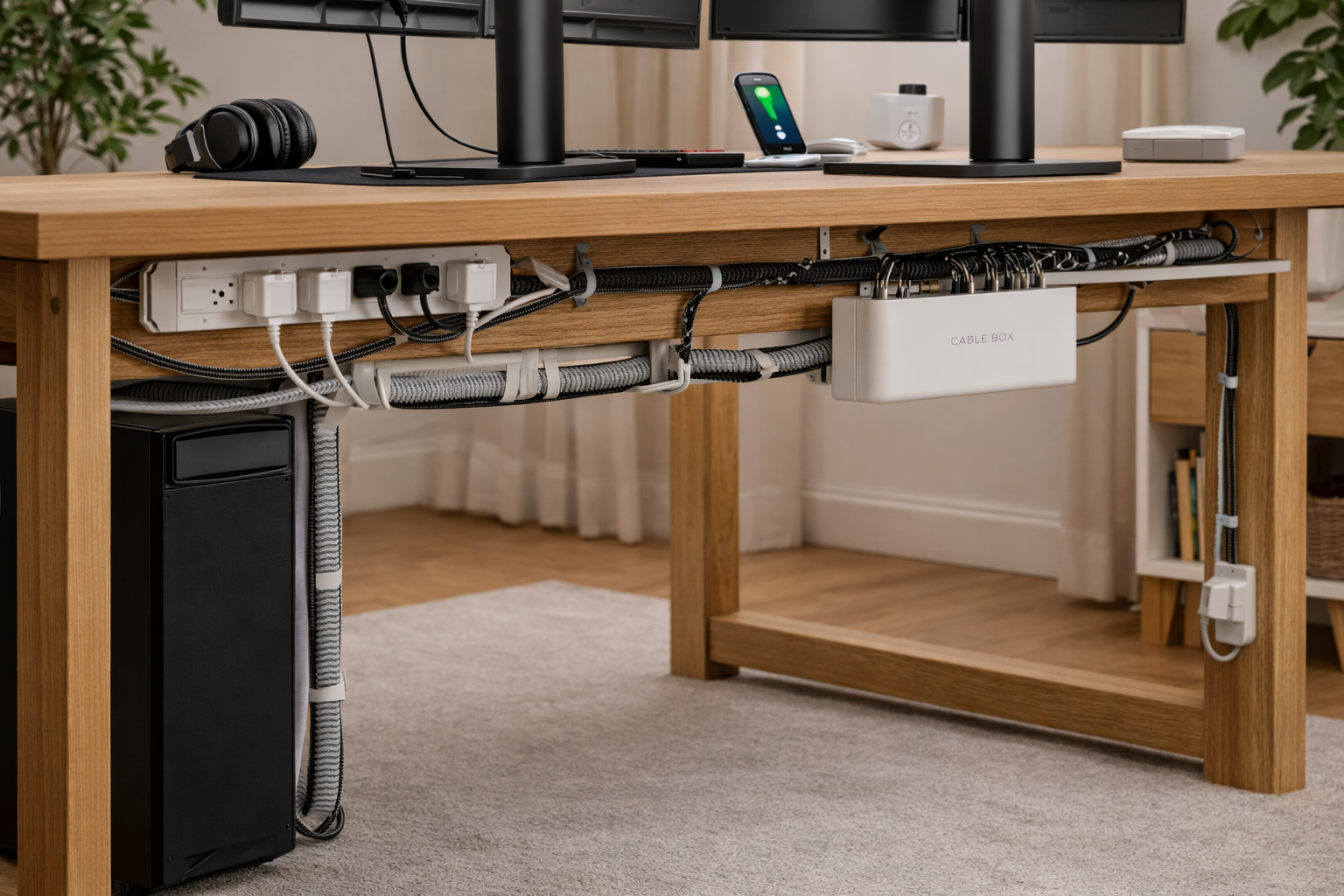



Cable Management Ideas for Your Desk in 2026 – a complete, practical guide to modern desk cable management, covering budget and premium solutions, under-desk routing, sit-stand desks, minimalist setups, and future-proof strategies.
Why Cable Management Matters More in 2026
In 2026, desk cable management is no longer just about looks—it’s about function, flexibility, and mental clarity.
Modern desks now support:
- Multiple monitors
- USB-C docks
- Charging stations
- Sit-stand movement
- Smart lighting and accessories
That means fewer cables than before, but each one is:
- Thicker
- More critical
- More visible if unmanaged
A messy desk creates:
- Visual distraction
- Accidental unplugging
- Harder cleaning
- Stress you don’t consciously notice
A well-managed desk does the opposite—it feels calmer, easier to maintain, and more professional.
How Desk Cable Management Has Evolved
1) Fewer cables, higher importance
USB-C and Thunderbolt have replaced a jungle of connectors with fewer, more powerful cables. But when one cable handles power + display + data, it becomes mission-critical.
2) Standing desks changed everything
Cable management in 2026 must move. Static zip-tie solutions from the past fail when a desk goes up and down.
3) Desks are now visual spaces
Home offices double as:
- Video call backgrounds
- Creative spaces
- Multi-use rooms
Cable management is now part of interior design, not just IT hygiene.
- IKEA Cable Management Solutions
- Bluelounge Cable Management Products
- Cable Management Accessories on Amazon
- The Verge Desk Setup Guides
- How-To Geek Cable Management Tips
The Cable Management Mindset (Before You Buy Anything)
The biggest mistake people make is buying accessories before planning.
Adopt this mindset instead:
“Cables are infrastructure, not clutter.”
Every cable should have:
- A destination
- A path
- An anchor point
If you can’t answer those three for a cable, it doesn’t belong on your desk.
Step-by-Step Cable Management System (That Actually Works)
Step 1: Audit your cables
Unplug everything.
Yes, everything.
Sort cables into:
- Essential (daily use)
- Occasional (weekly/monthly)
- Obsolete or duplicates
You’ll be shocked how many cables you no longer need.
Step 2: Decide what should be visible
Not all cables need to be hidden.
Good visible cables:
- Monitor cables that run straight down
- Keyboard/mouse cables (if wired)
- A single laptop charging cable
Bad visible cables:
- Power bricks
- Excess cable length
- Tangled loops
Intentional visibility looks clean. Accidental visibility looks messy.
Step 3: Anchor power first
Power is the backbone of your setup.
Decide:
- Where your power strip lives
- Where excess length will go
- How cables leave that zone
Everything else builds on this decision.
Under-Desk Cable Management Ideas (The Most Important Zone)
If you fix nothing else, fix under the desk.
1) Under-desk cable trays (the MVP)
Cable trays are the single most impactful upgrade.
They:
- Hold power strips
- Hide bulky adapters
- Create a “cable highway”
Choose trays that:
- Are metal (better airflow and strength)
- Mount with screws or clamps
- Run horizontally across the desk
In 2026, shallow mesh trays are especially popular because they prevent heat buildup.
2) Under-desk cable baskets
Baskets are deeper than trays and great for:
- Large power bricks
- Docking stations
- Network gear
They’re ideal if your desk has a lot of peripherals or if you want a “throw it in” solution that still looks tidy.
3) Raceway channels for vertical runs
Raceways guide cables:
- From desk to floor
- From desk surface to tray
They’re especially useful for:
- Standing desks
- Wall-mounted power outlets
Paintable raceways blend seamlessly with walls or desk legs.
4) Standing desk cable slack loops
Standing desks need controlled slack.
Best practice:
- Create a gentle loop under the desk
- Secure the loop with Velcro (not zip ties)
- Allow full desk movement without tension
Never hard-anchor a cable at full extension.
On-Desk Cable Management Ideas
A clean desk surface improves focus immediately.
1) Monitor arms with cable routing
Monitor arms do double duty:
- Free desk space
- Lift monitors to eye level
- Hide cables inside the arm
This alone can eliminate 4–6 visible cables from your desk.
2) Desk grommets & pass-through holes
If your desk has a grommet:
- Use it
- Don’t overfill it
If it doesn’t, clamp-on pass-through trays are a renter-friendly alternative.
3) Magnetic cable guides
Magnetic cable clips are perfect for:
- Phone chargers
- Headphone cables
- Temporary connections
They keep frequently used cables accessible without falling behind the desk.
4) Edge-mounted cable channels
Slim adhesive channels under the desk edge:
- Guide cables toward grommets
- Prevent drooping loops
They’re subtle but highly effective.
Power & Charging Management (Where Chaos Usually Starts)
1) Centralized power strips
Your power strip should:
- Live in a tray or basket
- Never sit on the floor (dust magnet)
- Be easy to access
Mounting the power strip is a game-changer.
2) Cable management boxes
Cable boxes hide:
- Power strips
- Large adapters
- Excess length
Use ventilated boxes to avoid heat buildup.
3) USB-C docks = fewer cables
A single dock can replace:
- HDMI cable
- Power adapter
- USB hub
In 2026, most productivity desks benefit from one dock—even desktop users.
4) Charging zones
Create a dedicated charging zone:
- One wireless charger
- One multi-port USB charger
Avoid plugging chargers randomly around your desk.
Cable Management for Different Desk Types
Fixed desks
Simplest setup:
- One tray
- One vertical raceway
- Minimal slack
Fixed desks allow more permanent solutions like screw-mounted trays.
Standing desks
Key principles:
- No tight bends
- No hard anchors at max height
- Flexible sleeving
Cable chains (like those used in industrial desks) are becoming more common in premium setups.
Small desks & apartments
Space-saving tricks:
- Clamp-on trays instead of screw mounts
- Adhesive channels
- Under-shelf cable routing
Vertical organization matters more than horizontal space here.
Budget vs Premium Cable Management (What’s Worth It?)
Budget solutions that work
- Velcro ties (reusable)
- Adhesive cable clips
- Plastic raceways
- Basic under-desk baskets
These cover 80% of needs.
Premium upgrades worth paying for
- Metal under-desk trays
- Monitor arms with internal routing
- Modular raceway systems
- Custom-length cables
Premium solutions shine in durability and aesthetics, not just function.
Common Cable Management Mistakes
- Over-tight zip ties (damages cables)
- Floor power strips (dust, foot kicks)
- No slack on standing desks
- Hiding cables you frequently unplug
- Ignoring airflow for power bricks
Avoid these and your setup will age gracefully.
Aesthetic-Focused Cable Management Ideas
Minimalist setups
- Same-color cables
- Straight vertical drops
- No visible power bricks
Design-forward desks
- Fabric-wrapped cables
- Wood-finish cable boxes
- Matching desk accessories
Intentional exposure
Some setups intentionally show:
- Braided USB-C cables
- Cleanly routed monitor cables
The key is symmetry and purpose.
Maintenance & Future-Proofing
Cable management isn’t “set and forget.”
Every 6 months:
- Remove unused cables
- Re-Velcro slack loops
- Wipe dust from trays
Future-proof by:
- Leaving spare capacity in trays
- Using adjustable systems
- Labeling both ends of critical cables
Your future self will thank you.
FAQs: Cable Management Ideas for Your Desk in 2026
1) What’s the single best cable management upgrade?
An under-desk cable tray. It solves power, clutter, and airflow in one move.
2) Are zip ties bad?
Permanent zip ties can be. Use Velcro ties for flexibility and cable safety.
3) How do I manage cables on a standing desk?
Create controlled slack loops and avoid hard anchoring. Movement must be smooth and tension-free.
4) Should I hide all cables?
No. Hide bulk, not function. Frequently used cables should remain accessible.
5) Is wireless the solution?
Wireless reduces some cables, but power always remains. Good cable management still matters.
6) How long does proper cable management take?
First time: 60–90 minutes.
Maintenance: 5–10 minutes every few months.
Cable Management Ideas Final Thoughts
The best Cable Management Ideas for Your Desk in 2026 aren’t about perfection—they’re about intentional design.
When cables have:
- A planned path
- A secure anchor
- Room to move
Your desk becomes:
- Easier to clean
- More flexible
- Calmer to work at
Start with power. Add one tray. Guide cables with purpose.
Do that, and your desk won’t just look better—it’ll feel better every single day.
All Rights Reserved © 2026