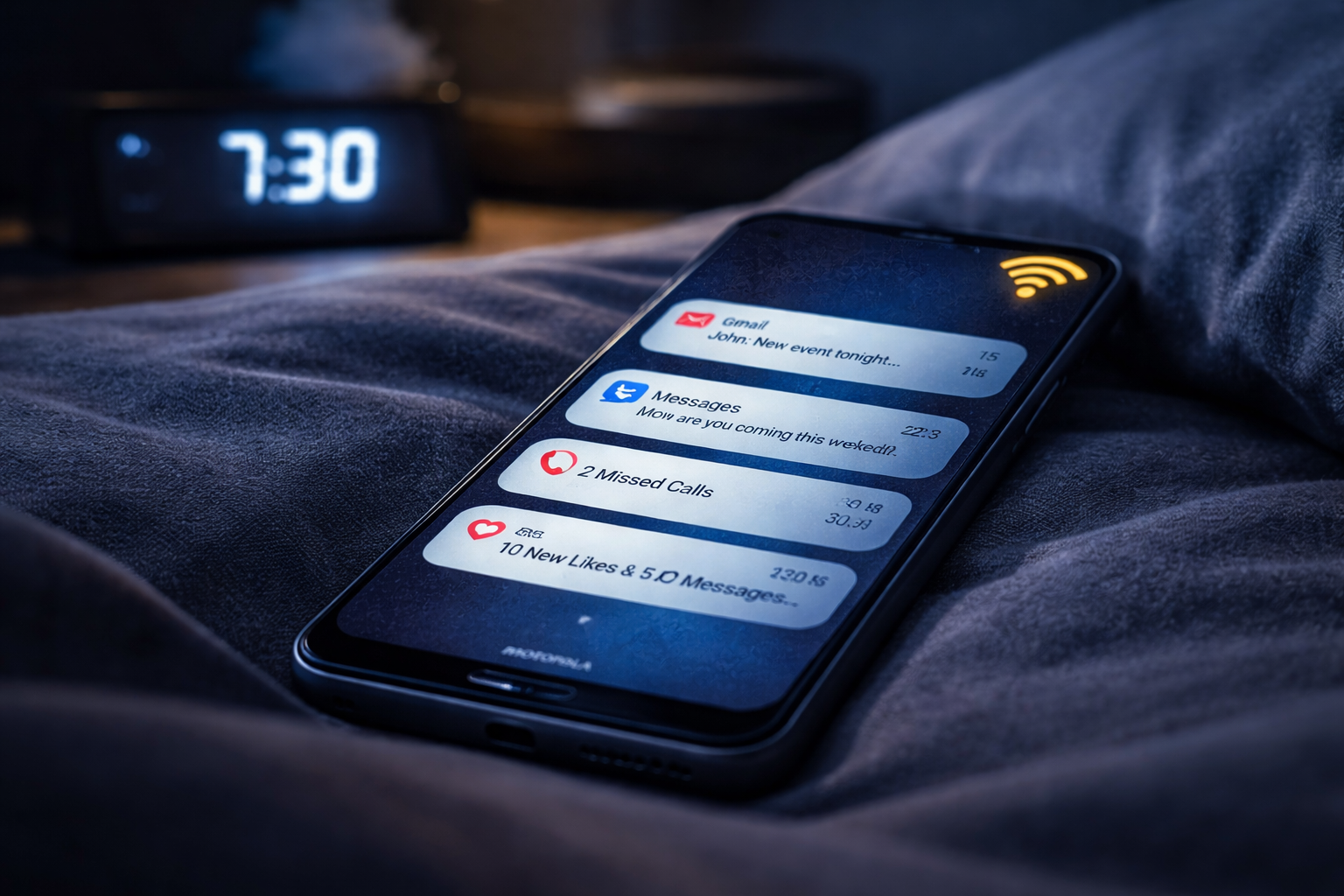



Motorola Wi-Fi sleep bug causing delayed notifications? Learn how to fix Motorola Wi-Fi sleep bug issues with proven Android, Motorola, and app-level settings that restore real-time alerts.
Motorola Wi-Fi sleep bug problems usually look the same from the user side: your phone sits quietly on Wi-Fi, the screen is off, and then the moment you unlock it, a pile of WhatsApp, Gmail, Slack, or Messenger notifications arrives all at once. To the user, it feels like the phone “fell asleep” on Wi-Fi. Motorola has public troubleshooting pages for missing notifications, and independent Android resources also point to battery restrictions, adaptive battery behavior, and network-saving features as common causes of delayed alerts on Android.
The Complete Moto G Series Guide: Hidden Features, Fixes & Optimization
That makes this article a practical guide, not hype. I need to be transparent about one thing up front: Motorola does not appear to have published a formal bulletin called the “Motorola Wi-Fi sleep bug.” What does exist is a long pattern of user reports, OEM background-management behavior, Android Doze limitations, and Motorola-specific battery controls that can create the same real-world symptom: delayed notifications while the phone is idle on Wi-Fi.
So when I use the phrase Motorola Wi-Fi sleep bug, I mean the cluster of symptoms where Motorola phones delay or batch notifications until the device wakes, switches network state, or leaves idle power-saving mode.
Motorola Wi-Fi sleep bug: what it is and what it feels like
The Motorola Wi-Fi sleep bug usually does not look like a total failure. Notifications often still arrive, just late. You may see one or more of these signs:
You leave the phone untouched for 10 to 60 minutes on home Wi-Fi. Then a friend sends a message, an email lands, or a work chat pings. Nothing shows up. The second you wake the screen, open the app, or toggle Wi-Fi, all the missed alerts appear at once. Android’s Doze mode is specifically designed to restrict network access and defer work while a device is idle, which explains why delays often correlate with the screen being off.
Moto G RAM Boost Causing Lag? Why You Must Turn It Off
You may also notice that the issue is worse for some apps than others. That is another clue. Google’s Firebase documentation explains that high-priority notifications are treated differently from normal-priority messages on Android, and low-priority or badly configured messages can be delayed while the device is idle. In other words, the Motorola Wi-Fi sleep bug can be partly phone-side and partly app-side.
The classic symptoms of the Motorola Wi-Fi sleep bug
Here are the patterns that strongly suggest the Motorola Wi-Fi sleep bug rather than a random app glitch:
- Notifications are late mainly when the phone is idle on Wi-Fi.
- Alerts arrive instantly when the screen turns on.
- The same apps behave better on mobile data than on Wi-Fi.
- The problem is worse after Battery Saver or Adaptive Battery has been enabled.
- Messaging apps are more affected than apps that you open often.
Why the problem often shows up only when the screen is off
This part matters because it explains why many users think Wi-Fi itself is broken. Often, it is not the Wi-Fi radio failing. Android’s idle power systems deliberately reduce background network activity once the device is unplugged, stationary, and the screen is off. During Doze, Android defers jobs, syncs, and normal alarms, and only briefly opens maintenance windows for background work. That behavior is officially documented by Android developers.
That means the Motorola Wi-Fi sleep bug can feel like “Wi-Fi sleeps,” even when the deeper cause is a combination of Doze, app standby buckets, battery restrictions, and OEM background management.
Why the Motorola Wi-Fi sleep bug happens
At a high level, the Motorola Wi-Fi sleep bug happens when the phone, the app, or both become too aggressive about saving power while the device is idle.
Android Doze and App Standby basics
Android’s official documentation says Doze restricts apps’ access to the network and defers jobs and syncs when the device is left unused with the screen off. App Standby Buckets further limit how often less-used apps can run background work. This is good for battery life, but terrible for time-sensitive notifications if the app or phone is configured badly.
That is why the Motorola Wi-Fi sleep bug often affects apps you do not open every hour. Android may gradually treat them as lower-priority background apps, especially when battery-saving systems are enabled.
Motorola’s background limits and adaptive battery behavior
Motorola phones do not have the worst reputation in the Android world for killing background apps, but they are still listed on Don’t Kill My App, a well-known watchdog project that documents OEM background restrictions. Its Motorola page specifically recommends setting affected apps to Unrestricted battery usage, disabling Adaptive battery if needed, checking Background restriction / Background limits, and using the Motorola-specific managing background apps setting when present.
That is important because the Motorola Wi-Fi sleep bug is often not fixed by touching only one switch. Users turn off battery optimization for an app, but Adaptive Battery or background limits still interfere. Or they fix app-level settings, but a Motorola background-management toggle still blocks timely delivery.
App-side push settings can make the Motorola Wi-Fi sleep bug worse
Google’s Firebase Cloud Messaging docs explain that normal-priority messages may be delayed while the device is in Doze, while high-priority messages are intended for time-sensitive, user-visible alerts and can wake a sleeping device when appropriate. Firebase also notes that misused high-priority messages can be deprioritized later.
That means some notification delays blamed on the Motorola Wi-Fi sleep bug are actually caused by the sending app or service using low-priority delivery. You cannot fix that from the phone side, but you can make sure your Motorola device is not making the problem worse.
How to confirm you are dealing with the Motorola Wi-Fi sleep bug
Before changing ten settings at once, verify the pattern.
Quick tests you can run in 10 minutes
- Connect your Motorola phone to stable Wi-Fi.
- Put the phone on a table, unplugged, screen off.
- From another device, send yourself messages through:
- Gmail
- Slack or Teams
- Wait 10 to 15 minutes.
- If nothing arrives until you wake the phone, you likely have a Motorola Wi-Fi sleep bug pattern.
- Repeat the same test on mobile data only. If notifications are better there, the issue is even more likely tied to idle Wi-Fi behavior or Wi-Fi-adjacent battery rules. This type of A/B testing is consistent with Android troubleshooting guidance around delayed notifications and power restrictions.
Signs the issue is Wi-Fi idle behavior, not the app itself
You are likely looking at the Motorola Wi-Fi sleep bug if:
- Multiple apps are affected, not just one.
- The problem improves when Battery Saver is off.
- The problem improves right after you reboot.
- The problem disappears when you use the phone actively.
- The problem is intermittent and tied to standby time.
If only one app is affected, the problem may still be the app itself, its notification priority, or its own internal sync rules.
Motorola Wi-Fi sleep bug fix: do these steps in order
This is the main section. Do these one by one, and test after each change. That way you will know which fix actually solved your Motorola Wi-Fi sleep bug.
Step 1: Update Android, Motorola system apps, and the affected app
Start simple. Many delayed-notification problems vanish after software updates because OEMs quietly patch power-management behavior. Update:
- Android system update
- Google Play system update
- Motorola Device Help / system apps if available
- The affected app itself
Motorola’s own support pages also recommend basic notification and reboot checks before going deeper.
After updating, reboot the phone and test again.
Step 2: Remove battery restrictions from the affected app
This is the most common fix for the Motorola Wi-Fi sleep bug.
On Motorola, Don’t Kill My App recommends:
- Open Settings
- Go to Apps
- Find the affected app
- Open App battery usage
- Allow battery usage
- Set it to Unrestricted
Do this for every app that must notify instantly:
- Gmail
- Signal
- Telegram
- Slack
- Teams
- Outlook
- Banking or security apps
Step 3: Turn off Adaptive Battery if needed
Adaptive Battery is meant to save power by limiting infrequently used apps. Don’t Kill My App’s Motorola page warns that Motorola’s definition of “infrequently used” can be aggressive enough to affect notifications. Android Authority also identifies adaptive battery settings as a common reason notifications are delayed on Android.
Go to:
- Settings > Battery > Adaptive Battery
- Turn it off temporarily
- Test for 24 to 48 hours
If your Motorola Wi-Fi sleep bug disappears, you have found the culprit. If battery life worsens too much, you can later turn Adaptive Battery back on and instead keep only your critical apps on Unrestricted.
Step 4: Check background activity restrictions and “manage background apps”
Motorola devices may include:
- Background restriction
- Background limits
- A searchable option called managing background apps
Don’t Kill My App specifically calls these out for Motorola.
Use your settings search and type:
- “background”
- “manage background apps”
- “battery usage”
If your messaging or work app is blocked there, remove the limit. This step alone fixes many cases of the Motorola Wi-Fi sleep bug that survive ordinary battery-optimization changes.
Step 5: Turn off Battery Saver and Data Saver during testing
Android Authority recommends disabling Battery Saver and Data Saver when troubleshooting delayed notifications because both can reduce or delay background connectivity.
For testing:
- Turn Battery Saver off
- Turn Data Saver off
- Reboot
- Test again on Wi-Fi standby
If your Motorola Wi-Fi sleep bug vanishes, leave those modes off or use them more carefully. A common mistake is enabling Battery Saver all day and then expecting instant chat notifications.
Step 6: Disable Adaptive Connectivity if your model has it
Android Authority notes that Adaptive Connectivity can delay syncing and notifications by adjusting network behavior to save power. Some users on XDA also specifically report that turning off Adaptive Connectivity can help with delayed notifications on newer devices.
If your Motorola model has it:
- Go to Settings > Network & Internet > Adaptive Connectivity
- Turn it off
- Test your Motorola Wi-Fi sleep bug again
Step 7: Reset app preferences
This one is underrated. Motorola support staff and user community troubleshooting frequently suggest resetting app preferences when notification behavior gets weird. Android Authority also notes that app-preference changes can silently break notifications.
Go to:
- Settings > Apps
- Tap the three-dot menu
- Choose Reset app preferences
- Reboot
This does not delete your data, but it resets disabled apps, notification defaults, permission defaults, and similar app-level settings. It is a smart mid-level fix for the Motorola Wi-Fi sleep bug.
Step 8: Reconnect Wi-Fi and reset network settings
The Motorola Wi-Fi sleep bug can also be reinforced by flaky Wi-Fi behavior, bad DHCP renewal, or corrupted network settings.
Try this sequence:
- Forget your main Wi-Fi network
- Reconnect
- Reboot router
- If needed, use Reset Wi-Fi, mobile & Bluetooth from System > Reset options
This will not fix Android Doze itself, but it removes plain network weirdness from the equation. General Android troubleshooting sources also recommend router and network resets for persistent notification/connectivity oddities.
Step 9: Test on mobile data to isolate the Motorola Wi-Fi sleep bug
If notifications are instant on mobile data but delayed on idle Wi-Fi, you have narrowed the problem well:
- It is likely not a simple app-notification toggle issue.
- It is more likely a combination of idle Wi-Fi behavior, Doze, or Motorola’s power management.
That is valuable because it stops you from wasting time reinstalling apps that are probably not the main cause.
App-by-app settings that help fix the Motorola Wi-Fi sleep bug
Gmail and email apps
Email is tricky because some email notifications are less urgent by design. Firebase documentation explicitly says low-priority messages and deferred work may be delayed during Doze.
To reduce Gmail-related Motorola Wi-Fi sleep bug symptoms:
- Make sure Sync is enabled for the account
- Disable battery restrictions for Gmail
- Keep Data Saver off while testing
- Open Gmail once after changing settings, because force-stopped or rarely used apps can behave differently in standby systems.
WhatsApp, Signal, Telegram, Messenger, and chat apps
These apps should usually feel instant. If they do not, the Motorola Wi-Fi sleep bug is more obvious.
For chat apps:
- Set battery usage to Unrestricted
- Confirm notifications are enabled in both the app and system settings
- Avoid force-stopping them
- Open them once after reboot
Motorola’s official support page tells users to verify per-app notification settings in Settings > Apps > All apps. Android Authority also notes that force-stopped apps will not receive timely notifications until manually reopened.
Work apps like Teams, Slack, and Outlook
Work apps are often more sensitive to Android power rules because they handle background sync, account state, and secure push behavior.
If your Motorola Wi-Fi sleep bug mostly affects work tools:
- Unrestrict battery usage
- Keep Adaptive Battery off during testing
- Make sure VPN or work-profile tools are not imposing their own data restrictions
- Ask your IT admin whether notifications are sent with appropriate Android priority if the problem is company-wide
This last point matters because the phone cannot fully compensate for badly configured push delivery on the server side. Firebase explicitly documents that message priority affects delivery timing in Doze.
Advanced Motorola Wi-Fi sleep bug fixes
Safe Mode testing
Motorola’s official support article recommends Safe Mode testing if notification issues persist, because a third-party app may be interfering.
Safe Mode is useful for the Motorola Wi-Fi sleep bug because it helps answer this question:
- Is Motorola/Android delaying notifications?
- Or is some cleaner, antivirus, VPN, app freezer, or automation tool interfering?
If notifications work correctly in Safe Mode, suspect a third-party app, not just Motorola’s built-in behavior.
ADB and developer-level testing
This section is for advanced users, but it is worth including because the Motorola Wi-Fi sleep bug often overlaps with Android Doze.
Android’s official developer docs explain how to test Doze and power-related issues with ADB commands. Examples include:
adb shell dumpsys battery unplugadb shell settings put global low_power 1adb shell am set-standby-bucket <package> active|working_set|frequent|rare
Factory reset: when it is worth it
A factory reset is not the first answer to the Motorola Wi-Fi sleep bug. It is worth considering only when:
- You have tested all major settings above
- Multiple apps are affected
- Safe Mode did not help
- The issue started after a major update or migration
- You suspect a broken configuration rather than a single toggle
Many users report temporary improvement after a reset because it clears years of app-state clutter and restored battery restrictions. But if you immediately restore every app and battery-saving tweak, the problem can return. A reset should be the last serious step, not the first.
How to stop the Motorola Wi-Fi sleep bug from coming back
Once you fix the Motorola Wi-Fi sleep bug, do not accidentally reintroduce it.
Settings to leave alone once notifications work again
If real-time alerts return after disabling or changing one of these, be careful before turning it back on:
- Adaptive Battery
- Battery Saver
- Data Saver
- Adaptive Connectivity
- Background limits for critical apps
A smart compromise is:
- Leave system-wide battery tools on if you must
- But keep critical apps on Unrestricted battery usage
Habits that quietly break background notifications
The Motorola Wi-Fi sleep bug often comes back because users:
- Force-stop apps to “save battery”
- Install task killers or RAM cleaners
- Use aggressive antivirus or phone optimizer apps
- Toggle Battery Saver on all day
- Ignore app-level notification or background permissions after reinstalling
Android Authority specifically warns that force-stopped apps and app preference changes can delay or block notifications. Motorola’s support docs also point users back to per-app settings.
FAQ
What is the Motorola Wi-Fi sleep bug, exactly?
The Motorola Wi-Fi sleep bug is the user-facing symptom where notifications arrive late when the phone is idle on Wi-Fi, then suddenly appear when the screen wakes or the phone becomes active. It is usually linked to Android Doze behavior, app standby, battery restrictions, and Motorola background-management settings rather than a single officially named bug.
Does the Motorola Wi-Fi sleep bug affect every app?
Not always. The Motorola Wi-Fi sleep bug often hits messaging, email, and work apps hardest because they depend on timely background communication. Some apps also use lower-priority Android push delivery and are more likely to be delayed while the phone is idle.
Will turning off Adaptive Battery fix the Motorola Wi-Fi sleep bug?
Sometimes, yes. Don’t Kill My App specifically recommends disabling Adaptive Battery on Motorola if background apps are being limited too aggressively. It is one of the most common successful tests for the Motorola Wi-Fi sleep bug.
Can the Motorola Wi-Fi sleep bug be caused by Android itself, not Motorola?
Yes. Android Doze and App Standby are official platform features that restrict network and background activity on idle devices. Motorola can make the behavior better or worse with its own battery-management layer, but the base mechanism comes from Android.
Why do my notifications come in when I unlock the phone?
That is one of the clearest signs of the Motorola Wi-Fi sleep bug pattern. When the phone wakes, background restrictions ease, the app reconnects, and pending notifications can finally be delivered.
Should I factory reset my phone to fix the Motorola Wi-Fi sleep bug?
Only after trying the settings fixes first. In many cases, the Motorola Wi-Fi sleep bug is fixed by changing battery, background, and connectivity settings. A reset is worth trying only when those fail and the issue affects many apps.
Can app developers help fix the Motorola Wi-Fi sleep bug?
Yes, partly. Google’s Firebase docs show that high-priority Android notifications are treated differently from normal-priority messages in Doze. If an app sends the wrong type of push notification, users may experience delays even on a correctly configured phone.
Conclusion
The phrase Motorola Wi-Fi sleep bug describes a real and frustrating symptom, even if Motorola has not published it under that exact name. The good news is that it is usually fixable.
In most cases, the winning sequence is:
- Update the phone and app
- Set critical apps to Unrestricted battery usage
- Disable Adaptive Battery while testing
- Remove background limits
- Turn off Battery Saver and Data Saver during troubleshooting
- Disable Adaptive Connectivity if available
- Reset app preferences
- Re-test on Wi-Fi vs mobile data
That order matters because it helps you isolate the actual trigger instead of randomly flipping settings.
All Rights Reserved © 2026