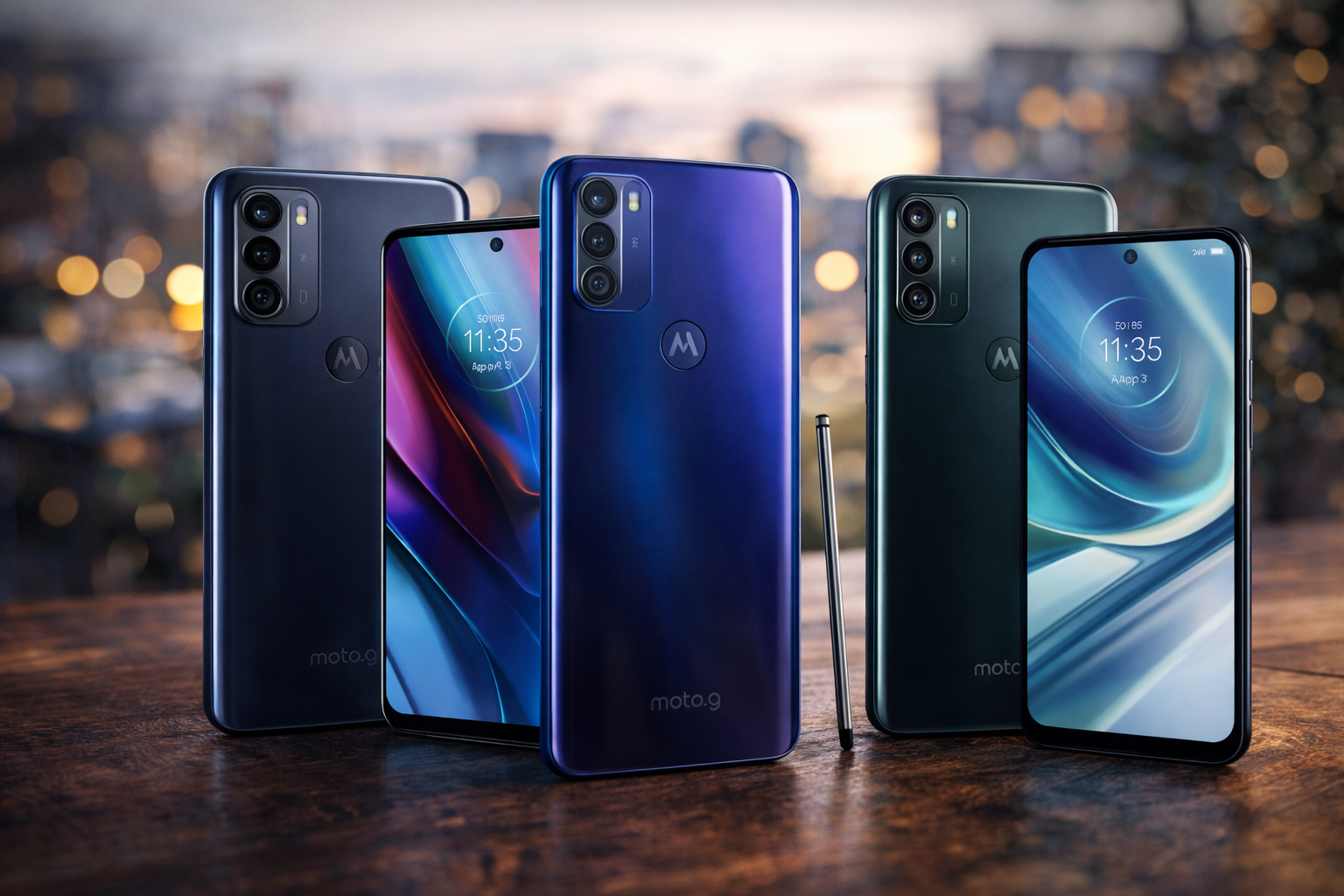



Moto G Series Guide: The Motorola Moto G series revolutionized the smartphone market by proving that “budget” doesn’t have to mean “broken.”
From the original breakthrough in 2013 to the latest Stylus and Power models, these devices are the workhorses of the Android world.
However, out of the box, your Moto G isn’t performing at 100%. Between aggressive RAM management, hidden “Moto Actions,” and specific software quirks, there is a lot to optimize. This comprehensive Moto G series guide will walk you through mastering your device, extending its lifespan, and fixing the most common headaches users face today.
1. Understanding Your Moto G: The Hardware-Software Balance
Motorola’s philosophy has always been “My UX”—a nearly stock version of Android with meaningful additions. Unlike Samsung’s heavy One UI or Xiaomi’s HyperOS, Motorola keeps it light.
Why this matters for performance: Because the software is light, the hardware (often mid-range Snapdragon or MediaTek chips) can breathe. However, as these phones age, the 4GB or 6GB of RAM can become a bottleneck. Knowing how to balance your background processes is the first step to a fast phone.
2. The “Moto Actions” Masterclass
The “secret sauce” of the Moto G series is Moto Actions. These are gesture-based shortcuts that use the phone’s accelerometer and gyroscope.
The Chop-Chop Flashlight
One of the most iconic features. A double karate-chop motion toggles the flashlight.
- Optimization Tip: If this feels sluggish, ensure “Battery Optimization” is turned off for the Moto app in your settings.
The Quick Capture (Twist Camera)
Twisting your wrist twice quickly launches the camera. This works even when the screen is off.
- Pro Tip: You can set this to launch the front-facing “Selfie” camera by default within the Moto app settings.
Peek Display vs. Always-On
Motorola doesn’t usually use a traditional “Always-On” display to save battery. Instead, Peek Display allows you to interact with notifications without unlocking the phone.
- How to use: Simply nudge the phone or wave your hand over the proximity sensor to see the time and icons.
Motorola Wi-Fi sleep bug: Delayed Notifications? How to Fix It
3. Deep Optimization: Making Your Moto G Faster
If your Moto G feels sluggish, it’s likely not the processor—it’s how the software is managing resources.
While Motorola heavily markets their virtual memory feature, many users find that Moto G RAM Boost actually causes significant UI stuttering. If your phone feels sluggish despite having ‘extra’ RAM enabled, read our dedicated guide on why you should disable Moto G RAM Boost for better performance.
The RAM Boost Controversy
Modern Moto G phones come with a feature called RAM Boost (Virtual RAM). While it sounds good on paper, it uses your slow internal storage as “fake” RAM.
- The Reality: For many users, this causes micro-stutters. If you find your phone lagging during multitasking, go to Settings > System > Performance > RAM Boost and toggle it off.
Animation Scaling
To make your Moto G feel twice as fast instantly:
- Enable Developer Options (Tap ‘Build Number’ 7 times in About Phone).
- Find Window Animation Scale, Transition Animation Scale, and Animator Duration Scale.
- Change all three from 1x to 0.5x.
4. Troubleshooting Common Moto G Issues
Even the best budget phones have their quirks. Here are the “Big Three” issues seen across the Moto G8, G Power, and G Stylus lineups.
The Wi-Fi Sleep Bug
Many users report that notifications don’t arrive until they wake the screen. This is often due to the “Wi-Fi Scanning” or “Battery Optimization” killing the connection during sleep.
- The Fix: Reset your Network Settings and ensure “Adaptive Battery” isn’t being too aggressive with apps like WhatsApp or Gmail.
Ghost Touching During Charging
Does your screen tap things on its own while plugged in? This is usually caused by “dirty power” or a non-OEM charging brick interfering with the capacitive digitizer.
- Solution: Always use the TurboPower charger that came in the box, or a high-quality GaN charger.
System Storage “Other” Files
Motorola’s system logs can sometimes bloat. If your 64GB or 128GB storage is full, check the System category. Clearing the cache of the “Media Storage” system app can often reclaim several gigabytes.
5. Camera Secrets: Beyond the Megapixels
Motorola cameras are decent in daylight but often struggle in low light. The hardware is usually capable, but the software processing is conservative.
Why You Should Install GCam
The Google Camera (GCam) port uses Google’s proprietary HDR+ algorithms. Installing a stable GCam APK on a Moto G can significantly improve:
- Dynamic range (no more blown-out skies).
- Night Sight (better low-light shots).
- Portrait mode (more natural bokeh).
Using the Macro Lens Correctly
Many Moto G models feature a dedicated 2MP or 5MP macro lens. To get a sharp shot, you must be exactly 3-5cm away from the subject. Since these lenses lack OIS (Optical Image Stabilization), use a tripod or brace your wrists against a table.
6. Battery Longevity: The 5000mAh Strategy
The “Power” series is famous for its 3-day battery life, but lithium-ion batteries degrade. To make your Moto G last 3-4 years:
- Overcharge Protection: Turn this on in Settings > Battery. It pauses charging at 80% if the phone has been plugged in for too long.
- Avoid Heat: The Moto G’s plastic back retains heat more than glass. Avoid heavy gaming while charging.
- Optimize Refresh Rate: If you have a 90Hz or 120Hz screen, set it to “Auto” rather than forcing the high refresh rate.
7. Privacy and Bloatware
Motorola is better than most, but you will still find “Moto Hub,” “Glance,” or carrier-installed games.
- Disabling Bloatware: You don’t need to root your phone. Go to Settings > Apps > See all apps. For apps you can’t uninstall, use the Disable button. This prevents them from running in the background and eating RAM.
- The “Glance” Lock Screen: Many users find the shifting wallpapers and ads on the lock screen annoying. This can be disabled under Display Settings > Lock Screen > Glance.
8. Connectivity: Ready For and Bluetooth Tips
Did you know some Moto G phones (like the G100 or G200) support Motorola Ready For? This allows you to plug your phone into a monitor or TV to create a desktop-like experience.
Fixing Bluetooth Audio Drops
If your earbuds keep disconnecting:
- Go to Developer Options.
- Change the Bluetooth Audio Codec from “SBC” to “AAC” or “aptX” depending on your headphones.
- Disable Bluetooth Scanning in Location services to prevent interference.
To finish your pillar page, we’ll use a Schema-ready FAQ section. This is crucial because Google often pulls these directly into the search results, giving you more “real estate” on page one.
Add this right before your conclusion:
Moto G Series Guide: Frequently Asked Questions (FAQ)
How many years of updates do Moto G phones get?
Most mid-range Moto G series devices receive one major Android OS update and two to three years of bi-monthly security patches. However, newer models like the Moto G Power (2025/2026) have seen slightly improved commitments. Always check your specific model’s retail listing, as “Play” models often receive fewer updates than “Stylus” or “Power” variants.
Does the Moto G series support wireless charging?
Traditionally, no. The Moto G line is budget-focused, and wireless charging is a premium feature. However, there are exceptions: the Moto G Power (2025) introduced 15W wireless charging. If your model doesn’t have it, you can use a third-party USB-C wireless charging receiver pad.
Why is my Moto G charging so slowly?
Motorola uses TurboPower technology. To get max speeds (up to 30W on newer models), you must use the original Motorola brick and cable. If you are using a third-party charger, ensure it is USB-PD (Power Delivery) compatible. Also, check Settings > Battery to ensure “Optimized Charging” isn’t slowing the rate to preserve battery health.
Are Moto G phones waterproof?
Most Moto G phones are water-repellent, not waterproof. They feature a P2i nano-coating that protects against accidental spills or light rain. Only specific newer models, such as the Moto G Power (2026), have earned higher IP68/IP69 certifications for full immersion. Always check your manual before taking your phone near a pool.+1
How do I fix the “System Storage Full” error?
If your “Other” or “System” storage is taking up 20GB+, it’s likely cached thumbnails or update logs.
- Clear the cache of the Media Storage system app.
- Use the Files by Google app to delete “Large Files.”
- If the problem persists, a Factory Reset is the only way to clear deep system-level log bloat.
Why does my Moto G screen dim randomly?
This is usually a calibration issue with the Adaptive Brightness sensor. You can reset this by going to Settings > Apps > See all apps > Device Health Services > Storage > Clear Cache. This forces the phone to “re-learn” your lighting preferences.
Motorola’s philosophy revolves around a “clean” Android experience. You can see the full breakdown of their current software commitment and security standards on the official Motorola Support Product Page.
Moto G Series Guide Conclusion: The Value King
The Moto G series remains the gold standard for budget Android because of its utility. By mastering Moto Actions, optimizing your RAM settings, and knowing how to side-load a GCam port, you turn a $200 phone into a device that rivals flagships twice its price.
Next Steps for Moto G Owners:
- Check for the latest Security Patch in Settings.
- Audit your “System Storage” to clear out “Other” files.
- Turn off RAM Boost if you notice UI lag.
All Rights Reserved © 2026