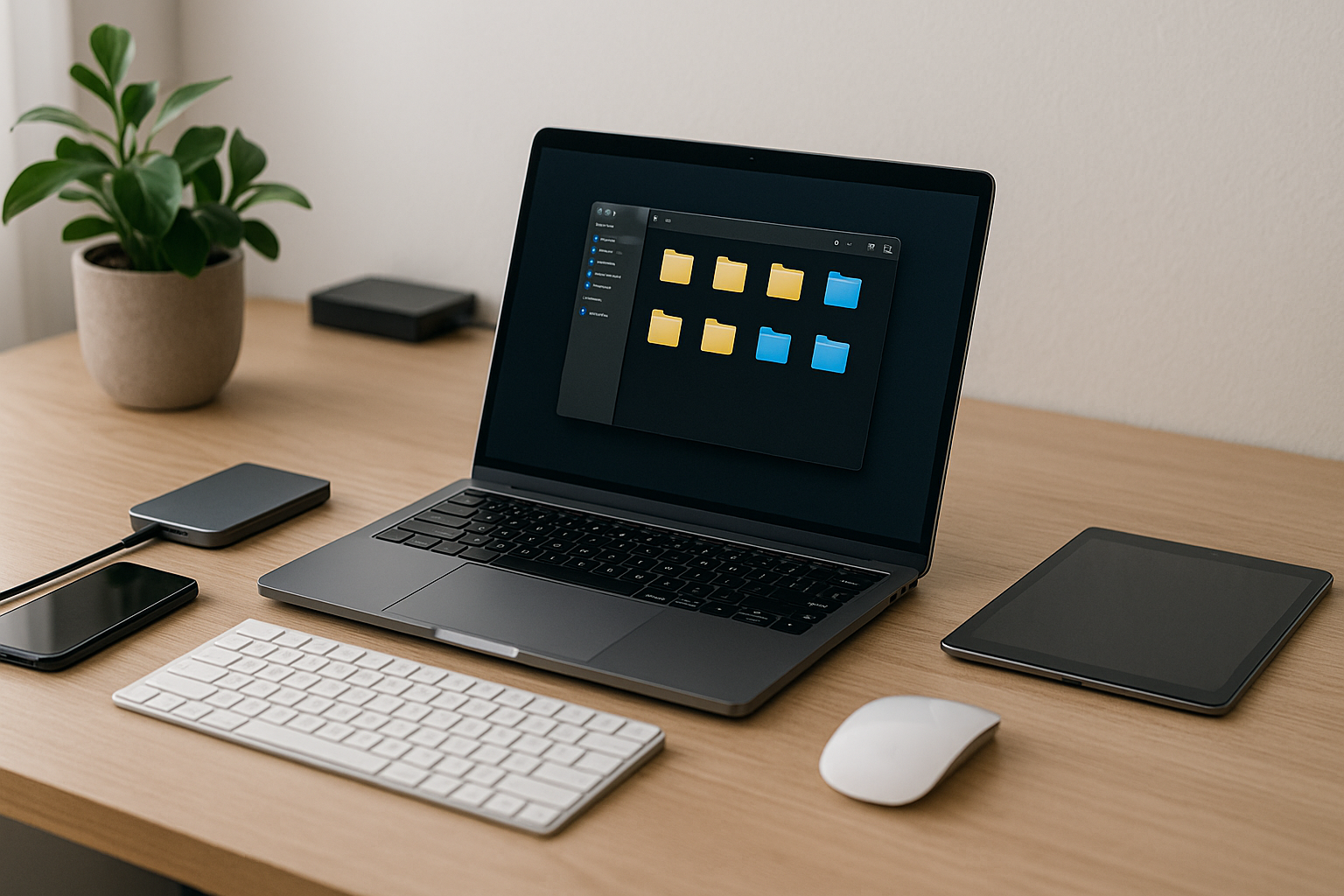



Learn How to Organize Your Life Digitally in 2026 using a clean framework, lightweight tools, folder rules, automation tips, security basics, and a 7-day plan to get you clutter-free fast.
Modern life runs through screens: apps, chats, files, photos, and alerts. Without a simple system, things get lost and stress rises. With the right setup, everything you need is one tap away. This guide shows you How to Organize Your Life Digitally in 2026 with a step-by-step framework you can set up in a week and keep forever.
How to Organize Your Life Digitally Why Digital Organization Matters in 2026
Always-on life: apps, messages, files, and alerts
We juggle email, team chat, texts, calendars, cloud drives, social DMs, and AI notes. That’s a lot of inputs. If you don’t design how information flows, your tools will design it for you—and usually not in your favor.
Benefits: clarity, speed, focus, and security
A clean digital system gives you:
- Clarity: know where everything lives.
- Speed: find a file in seconds.
- Focus: fewer decisions, fewer tabs.
- Security: fewer “oops” moments and better backups.
How to Organize Your Life Digitally The D.O.N.E. Framework (2026 Edition)
D — Decide your system (areas, tools, rules)
Start by choosing where things go and how they’re named. List your life Areas (Work, Personal, Family, Finance, Learning, Health, Home). For each area, pick the tool(s) you will use and write one-line rules (e.g., “All receipts to Finance ▸ Receipts (YYYY)”).
O — Organize with simple structures
Use short, predictable folder trees and project templates. Keep names consistent across apps. Structure beats memory—let the system carry the load.
N — Normalize habits with small routines
Routines keep the system clean: daily 10-minute tidy, weekly 30-minute review, monthly archive. Tiny habits prevent big messes.
E — Evolve with reviews and improvements
Your life changes. Your system should, too. Once a month, prune tools you don’t use, merge folders, and shorten names. Less is more.
How to Organize Your Life Digitally Build Your Tool Stack (Pick One per Layer)
Choose one primary tool for each layer so you don’t fragment information:
- Notes / Docs: a place you think and write (e.g., Google Docs, Notion, Apple Notes).
- Tasks: lists with due dates and recurring items (e.g., Todoist, Things, Microsoft To Do).
- Calendar: scheduling, timeboxing, shared events (e.g., Google Calendar, Outlook).
- Storage: a single cloud drive for files (e.g., Google Drive, OneDrive, iCloud Drive, Dropbox).
- Passwords: a password manager with MFA (e.g., 1Password, Bitwarden).
- Automation: connect apps (e.g., Zapier, Make, Shortcuts).
- AI Copilot: drafting, summarizing, labeling (your preferred assistant).
Rule: If a tool isn’t opened daily or weekly with intent, consider removing it.
How to Organize Your Life Digitally Universal Naming Conventions That End Confusion
Use names you can sort and scan quickly:
- Dates:
YYYY-MM-DDorYYYY-MMso lists sort in order:2026-03 Marketing Plan v1
- Versions:
v1, v2, FINAL (date). - Projects:
Area — Project — Artifact:Work — Q2 Launch — Brief v1
- People:
Last, First — Topicfor shared docs. - Images/Media:
YYYY-MM Event — Short Description.
Avoid clever names. Use clear, boring names that future-you will understand.
Folder Trees That Actually Scale
A simple, scalable pattern:
/Drive /Work /Projects /2026-01 Website Refresh /2026-03 App Beta /Reference /Archive /Personal /Finance /Invoices /Receipts 2026 /Health /Records /Home /Documents /Appliances /Learning /Courses /Notes /Family /Travel /KidsWhy it works: Areas are stable, Projects come and go, Archive keeps history tidy.
Task & Project Management: From Overwhelm to Output
Today / This Week / Backlog
- Today: at most 7 tasks (3 important, 4 small).
- This Week: 15–25 tasks max.
- Backlog: everything else. Review weekly so your brain relaxes.
Recurring tasks & checklists
Turn chores and admin into recurring tasks:
- Pay cards (monthly), clean inbox (Fri), file receipts (Sun), backup photos (1st of month).
Use templates for repeatable projects (e.g., “Travel Pack List,” “Client Onboarding”).
Calendar Mastery for 2026 (Timeboxing + Themes)
- Timebox deep work (two 50-minute blocks/day).
- Theme days to reduce context switches: Mon planning, Tue/Thu delivery, Wed collaboration, Fri review/admin.
- Buffers: 10 minutes between meetings; 30 minutes Wed/Thu for surprises.
- Shared calendars: color-code (Work/Personal/Family/Focus).
The calendar is your reality; tasks must fit inside it.
Email, Messages, and Notifications — Taming the Firehose
- Two inbox windows/day: 11:30 and 16:30. Otherwise closed.
- Rules & filters: auto-label newsletters, route invoices to Finance, star action emails.
- Channel standards: urgent = chat; non-urgent = email; docs for decisions; family calendar for logistics.
- Notifications: allowlists only; everything else on summary. Your attention is valuable.
Capture & Retrieval: Make Everything Findable in 5 Seconds
- Quick capture: one tap to save an idea (notes widget, voice to text).
- Tags: 3–7 global tags across apps (e.g.,
#waiting,#reference,#ideas,#receipts,#travel). - One source of truth: link the source doc from the task. If it’s not linked, it’s not ready.
Photos, Media, and Personal Knowledge Hub
- Auto-backup from phone to your cloud.
- Albums:
YYYY→YYYY-MM Event. - Favorites: mark keepers weekly; create a Monthly Highlights album.
- Personal knowledge hub: store evergreen notes (book highlights, how-tos, recipes) in one notebook with a simple index.
How to Organize Your Life Digitally Digital Security Basics You’ll Actually Use
- Password manager for every account; unique, long passwords.
- MFA (app or hardware key) on email, banking, storage.
- Backups: 3-2-1 rule (3 copies, 2 media, 1 off-site/cloud).
- Device hygiene: updates on, disk encryption on, auto-lock short.
- Sharing rules: least access needed; remove old guests each quarter.
Excellent fundamentals from the National Institute of Standards and Technology (NIST): https://www.nist.gov/cybersecurity
.
Automations That Save an Hour a Day
- Email → Task: star or label turns into a dated task.
- Calendar → Notes: meeting starts → create a note with attendees + template.
- Files → Smart Folders: receipts auto-rename to
YYYY-MM Vendor Amount.pdf. - Photos → Cloud: auto-upload on Wi-Fi; monthly move best shots to Highlights.
- Home Shortcuts: “Focus Mode” turns on DND, opens task app, starts a 50-minute timer.
Start with one automation per week; keep only what clearly saves time.
How to Organize Your Life Digitally Weekly & Monthly Reviews (Short and Sustainable)
Weekly (30 minutes):
- Wins shipped (list 3).
- Loose ends to capture.
- This Week view: set priorities and book timeboxes.
- Backlog prune (delete/merge/rename).
- Photo favorites (2 minutes).
Monthly (45–60 minutes):
- Archive finished projects.
- Re-label messy folders.
- Remove unused apps/integrations.
- Security sweep (passwords, sharing, devices).
- Money & admin check: downloads, receipts, backups.
Consistency beats marathon cleanups.
How to Organize Your Life Digitally in 2026: Quick Start Plan (7 Days)
- Day 1 — Map Areas & Rules: Write your Areas list and one-line rules.
- Day 2 — Choose Tools (one per layer): uninstall extras.
- Day 3 — Folder Tree & Naming: create top-level folders; set templates.
- Day 4 — Tasks Setup: Today/Week/Backlog views + 10 recurring tasks.
- Day 5 — Calendar: theme days, add deep-work blocks, create buffers.
- Day 6 — Email & Notifications: filters, two inbox windows, Focus Modes.
- Day 7 — Review & Automate: add 1–2 automations; run your first weekly review.
By next week, you’re running light and fast.
How to Organize Your Life Digitally FAQs — Digital Organization 2026
1) What’s the best app for everything?
There isn’t one. Pick one reliable tool per layer (notes, tasks, calendar, storage, passwords) and connect them.
2) How do I stop switching tools?
Write down your tool rules and commit for 90 days. Remove similar apps from your phone and menu bar.
3) My files are a mess—where do I start?
Create the top-level Areas folders first. Then a Staging folder where you temporarily drop clutter. Move in batches 15 minutes/day.
4) How do I keep email from taking my day?
Two windows daily, strict. Convert action emails to tasks with due dates. Archive the rest.
5) What about shared family or team stuff?
Use shared calendars and a small set of channel rules (what goes where). Keep one “house manual” doc for critical info and links.
6) I’m scared of losing photos. Tips?
Enable auto-backup, test restore, and run a monthly Highlights review so the library stays meaningful.
7) Do I need automations now?
Start tiny. One automation that saves clicks (email→task) beats ten complex zaps you’ll forget.
8) How do I keep this going?
A 10-minute daily tidy + a 30-minute weekly review keeps everything clean with minimal effort.
How to Organize Your Life Digitally Conclusion
Getting organized doesn’t require fancy dashboards—it needs clear places, simple names, small routines, and a few smart rules. With the D.O.N.E. framework, a lean tool stack, and a short weekly review, you’ll know where everything lives and find anything in seconds. That’s how you truly Organize Your Life Digitally in 2026—less chaos, more calm, every single day.
- How to Organize Your Life Digitally in 2026
- How to Plan Your Week Like a Pro in 2026
- Best Time-Blocking Methods in 2026
- Productivity Hacks for Busy People in 2026
- How to Stop Procrastinating in 2026
- How to Build Better Habits in 2026
- How to Improve Your Focus in 2026
- How to Set Realistic Goals in 2026
- Morning Routines in 2026
- Best AI Tools for Productivity in 2026
- Notion — Digital Organization Guide
- Todoist — Productivity Methods
- Evernote — Digital Notes & Organization Tips
- Google Drive — Official Support & Tutorials
- Microsoft OneDrive — Cloud Storage
- Zapier — Automation & Workflow Optimization
- Dropbox — Cloud Storage Features
- Harvard Business Review — How to Organize Your Digital Life
- Lifehacker — Organization Tips
- MakeUseOf — Digital File Organization
All Rights Reserved © 2026